photocraft Kling 2.6 Pro for Short Performances with Generated Sound
Build a scene around the moment an action becomes meaningful: a person speaks, a mechanism closes, or a prepared display opens. photocraft Kling 2.6 Pro on photocraft offers text and image generation with optional native audio, keeping the brief focused on a five-second or ten-second take.
Video workspace
The wooden elevator opens
28/45View prompt
Five-second continuous frontal shot of closed wooden elevator doors opening slowly to reveal one adult woman standing inside. Keep the camera fixed at eye level and the woman relaxed, facing forward. Preserve a simple, balanced composition with warm wood grain and soft interior light. End with the doors open and the woman still standing.
Introduction
What Is photocraft Kling 2.6 Pro?
photocraft Kling 2.6 Pro is a video generation model offered through fal for text-led scenes and image-led motion, with native audio available as part of the generation request.
A model for picture and audible performance
Both routes provide a generated-audio option, while the image route accepts an opening picture and an optional ending picture. That makes photocraft Kling 2.6 Pro useful for exploring a brief in which the action and soundtrack belong together. You can also disable generated audio when the visual shot is the only part needed for the assignment.
The photocraft Kling 2.6 Pro workspace configuration
On photocraft, this model uses 1080p output with a choice of five or ten seconds. Choose text or image mode, supply the appropriate visual material, and decide whether to generate sound. The photocraft Kling 2.6 Pro workflow does not require you to construct an elaborate timeline; the creative direction comes from a clear scene brief and the available controls.
How to use
How to Use photocraft Kling 2.6 Pro
- PromptSTEP 1
Choose the visual input
Select photocraft Kling 2.6 Pro on photocraft and choose text or image mode. Prepare the first frame and an optional last frame when the shot should connect two visual states.
- ModelKling 2.6 Pro1080p16:95sPromptSTEP 2
Write the performance brief
Describe the photocraft Kling 2.6 Pro subject, setting, action, and finishing state. When speech is needed, identify the speaker and write a short line that fits the scene.
- First frameLast frame
 0.0s
0.0s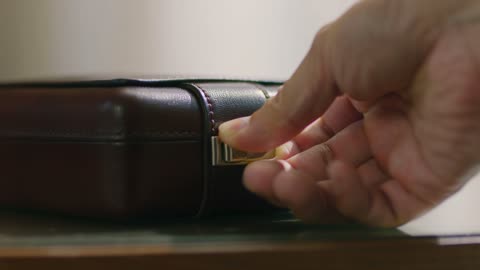 2.5s
2.5s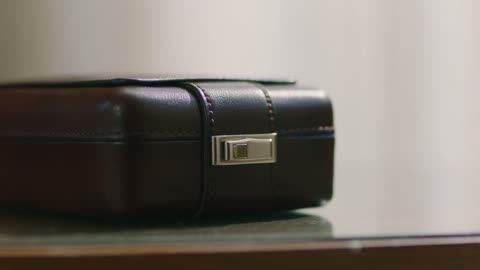 4.5sSTEP 3
Set length and generated audio
Choose five or ten seconds for photocraft Kling 2.6 Pro and turn generated audio on or off. The workspace uses 1080p output; check the displayed credits before generating.
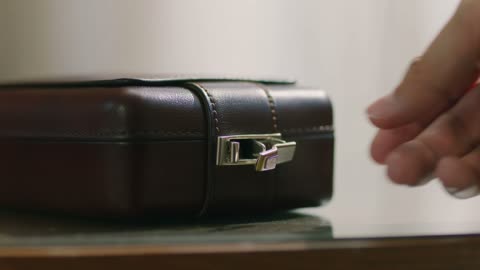
- Create a five-second close view of an adult hand closing the clasp on a plain leather case. Keep the case resting on the table and the viewpoint steady. Include one restrained clasp click with quiet indoor ambience. Soft side lighting, readable hand motion, and a brief final hold. No speech, music, logos, or extra objects.DownloadSTEP 4
Inspect picture and sound
Watch the photocraft Kling 2.6 Pro take at normal speed and inspect important details. Listen separately to any speech or sound, then revise the specific issue that affects the scene most.
Features
Make photocraft Kling 2.6 Pro Sound Explain the Action
An audible detail can turn a movement into an understandable event. Give photocraft Kling 2.6 Pro a specific relationship between what happens on screen and what the audience hears.
Choose the main sound for photocraft Kling 2.6 Pro
A small clasp closing can be more informative than a generic dramatic score. Name the visible action, describe its sound, and keep unrelated noise subordinate. With photocraft Kling 2.6 Pro, build the request around a clear acoustic focal point: a click, a footstep, or a gentle object contact. Listen for whether that sound reinforces the event rather than distracting from it.
Give a speaker a short, clear line
Identify the speaker consistently and state the exact words when dialogue is part of the shot. Keep the line short enough to fit alongside the visible action. A photocraft Kling 2.6 Pro clip should leave room for the speaker to begin and finish without rushing. Review the wording, pronunciation, and mouth timing instead of approving a line solely because the delivery sounds confident.
Use Images to Direct photocraft Kling 2.6 Pro
An opening image establishes the scene, and an optional last image supplies a destination. Give photocraft Kling 2.6 Pro an understandable visual connection between those two states.
Make the first frame ready for movement
Look for a source that shows the relevant subject clearly and leaves space for the action. A person turning a shoulder needs a different crop from a close view of fingers opening a case. Prepare the photocraft Kling 2.6 Pro input around that movement. Preserve a useful background reference so changing scale or position can be assessed in the returned video.
Keep the ending compatible with the beginning
The two pictures should agree about the subject’s design, proportions, and environment. Explain the intended change rather than assuming the pair communicates every step. For photocraft Kling 2.6 Pro, a small opening movement or a restrained repositioning creates a concrete transition to examine. If the middle becomes distorted, consider whether the endpoints ask for a movement that the available views cannot explain.
Choose a Complete photocraft Kling 2.6 Pro Moment
Five and ten seconds support different amounts of development. Choose the photocraft Kling 2.6 Pro duration that lets the central event happen clearly and reach a useful stopping point.
Use five seconds for a single beat
Start close to the action and remove unnecessary setup. A person can look up, say a brief greeting, or close a small container. Give photocraft Kling 2.6 Pro one decisive beat rather than a condensed sequence of scenes. Think about the first thing the viewer notices and the state they should see at the end; both should be easy to identify.
Let ten seconds show anticipation and response
A longer take can include a pause before an action and a reaction afterward. Keep the progression connected, such as a craftsperson opening a case and examining its contents. Tell photocraft Kling 2.6 Pro how the movement develops without making every second a separate instruction. Leave the ending calm enough that the clip can be reviewed or placed beside other footage.
Compose a photocraft Kling 2.6 Pro Scene from Words
Text mode is useful when the picture does not exist yet. Give photocraft Kling 2.6 Pro a scene that can be staged, with a defined subject and an intentional viewpoint.
Describe relationships before decoration
Place the subject in relation to a table, doorway, window, or other stable feature. Explain what the viewer should see clearly and what can remain secondary. A photocraft Kling 2.6 Pro prompt becomes more concrete when it specifies distance, position, and movement rather than relying on a list of style terms. Add lighting and material details after those relationships make sense.
Make the camera support the performance
Choose a steady view when a small facial expression or hand action is the main point. Use a gentle approach when it reveals a detail the audience needs. Tell photocraft Kling 2.6 Pro why the viewpoint changes through the composition you describe. Avoid combining a rapid camera move with a subtle performance that would become difficult to read during motion.
Review photocraft Kling 2.6 Pro at the Delivered Size
The 1080p workspace output gives you a concrete result to examine. Evaluate photocraft Kling 2.6 Pro through the whole take, with equal attention to continuity and any generated soundtrack.
Inspect meaningful photocraft Kling 2.6 Pro details
Check eyes, hands, small lettering, repeated patterns, and contact between objects. The useful photocraft Kling 2.6 Pro result is the one that preserves what matters to the brief, not simply the frame that looks strongest when paused. For product-related work, compare important details with the real item and reject invented changes that could alter what the scene appears to demonstrate.
Revise the performance rather than every setting
Keep the successful staging and name the issue: a rushed line, an overly large gesture, or an ending that arrives too abruptly. A focused photocraft Kling 2.6 Pro revision preserves the creative direction while giving the next request a clear objective. Recheck the workspace credits after setting the duration and audio choice, then inspect the new take on its own merits.
Example prompts
Text with audio: a small mechanical click
Create a five-second close view of an adult hand closing the clasp on a plain leather case. Keep the case resting on the table and the viewpoint steady. Include one restrained clasp click with quiet indoor ambience. Soft side lighting, readable hand motion, and a brief final hold. No speech, music, logos, or extra objects.
Image endpoints: reveal the arrangement
Use the supplied opening image and ending image of the same presentation case. Over ten seconds, show the case opening to the ending arrangement. Preserve the case design, table position, lighting, and visible contents. Use a steady viewpoint and natural movement. No extra products, added lettering, hands appearing from nowhere, or scene cuts.
Text with dialogue: a calm welcome
Create a ten-second medium shot of an adult studio host beside a simple worktable. The host turns gently toward the viewer, gestures to the table, and says, "let’s begin with one simple idea." Keep the voice calm and clear, with quiet room ambience and no music. End on a relaxed pause. No other speakers or captions.
User reviews
photocraft video creator feedback.
photocraft creator reviews

I made a full character PV for my game with MiniMax H3 in one afternoon. The menu UI stayed readable in every frame and the character never went off-model. That used to cost me a contractor and three weeks.

We tested every photocraft AI video generator on the market for stylized work. H3 is the only one that held our anime style across cuts. We now use it for pitch reels and animatics on every project.

I uploaded four product photos and got a listing video with music and a voiceover the same day. My click-through rate on the new listings is up 38%. H3 even got the label text on my packaging right.

I ship five vertical videos a week for three brands. MiniMax H3 gets me from brief to draft in under an hour, with sound already synced. My old workflow needed a videographer and two review rounds.

The editing side is what sold me. A client wanted the background of an interview changed — I typed one sentence into MiniMax H3 and the lighting on the subject matched the new scene automatically.

I previsualized my entire short film in MiniMax H3 before we shot a single frame. Rack focus, match cuts, even the title cards — it understands director language, not just keywords.
photocraft MiniMax H3 Max Pricing and Credit Plans
Cancel anytime
Lite
50% off0.025 / credit
Billed $ yearly179· Save $179.8
Video Models


Image Models



- Includes MiniMax H3 and all premium models
- Up to 1 batch generation task
- Standard generation speed
- Standard generation success rate
- Standard customer support
- Commercial Use License
Standard
50% off0.017 / credit
Billed $ yearly299· Save $299.8
Video Models
Image Models
- Includes MiniMax H3 and all premium models
- Up to 4 batch generation tasks
- Priority processing speed
- High generation success rate
- Priority customer support
- Commercial Use License
Pro
50% off0.014 / credit
Billed $ yearly599· Save $599.8
Video Models
Image Models
- Includes MiniMax H3 and all premium models
- Up to 10 batch generation tasks
- Fastest generation speed
- High generation success rate
- Dedicated account manager
- Commercial Use License
Max
50% off0.012 / credit
Billed $ yearly1,199· Save $1,199.8
Video Models
Image Models
- Includes MiniMax H3 and all premium models
- Up to 10 batch generation tasks
- Fastest generation speed
- High generation success rate
- Dedicated account manager
- Commercial Use License
Pay safely and securely with























FAQ
Frequently asked questions
What can photocraft Kling 2.6 Pro create on photocraft?
photocraft Kling 2.6 Pro creates video from text or images, with generated audio on or off. Use it for a short performance, an object interaction, or a planned transition between compatible opening and ending pictures.
What is the photocraft Kling 2.6 Pro output resolution here?
The photocraft Kling 2.6 Pro workspace uses 1080p output. Review the delivered video for meaningful detail and continuity; the resolution setting does not guarantee that lettering, faces, or product features will remain exact.
Can photocraft Kling 2.6 Pro generate longer than ten seconds here?
This photocraft Kling 2.6 Pro workflow offers five-second and ten-second clips. Plan a complete action within one of those choices instead of writing a scene that requires a longer duration or an automatic extension.
Does photocraft Kling 2.6 Pro accept a last-frame image?
Yes. photocraft Kling 2.6 Pro image mode accepts a first image and an optional last image. Match their subject and surroundings, then describe the connecting movement. Inspect the intermediate frames before selecting the result.
Can I disable photocraft Kling 2.6 Pro generated audio?
Yes. The photocraft Kling 2.6 Pro workspace includes an audio switch. Turn it off for a picture-only request, or enable it and describe the speech, action sound, or atmosphere the scene needs.
Does photocraft Kling 2.6 Pro include a voice selection tool here?
This photocraft Kling 2.6 Pro workflow offers generated audio, not a custom voice selector or voice-cloning workflow. Describe an appropriate delivery in the prompt and review the result without assuming a specific recorded voice will be reproduced.
How do I check photocraft Kling 2.6 Pro generation credits?
Review the credits shown for photocraft Kling 2.6 Pro after selecting the duration and audio setting. Check again before another request, especially when the configuration changes, rather than relying on an earlier amount.
CTA
Develop a Short Performance with photocraft Kling 2.6 Pro
Bring a clear event, compatible images when needed, and a considered sound direction. Check the credits and create a photocraft Kling 2.6 Pro scene on photocraft that you can assess as a complete take.
Create Your Short Scene